All study unit/assignment submissions should now be handled through KBPro. You are able to submit multiple drafts of any study unit through to your PLA and they will be notified of any updates you make to your submissions. Feedback on your submissions will also be available to view using the platform as well as email notifications alerting you to any updates.
Making your initial submission
Before submitting, you will need to have enrolled on the relevant study unit. You can view your enrolled study units by going to the Study Centre and clicking View Enrolled Units, or by selecting the Study Units tab from within your profile. Click on the relevant study unit from the list to take you to the study unit page, which should look like the following:
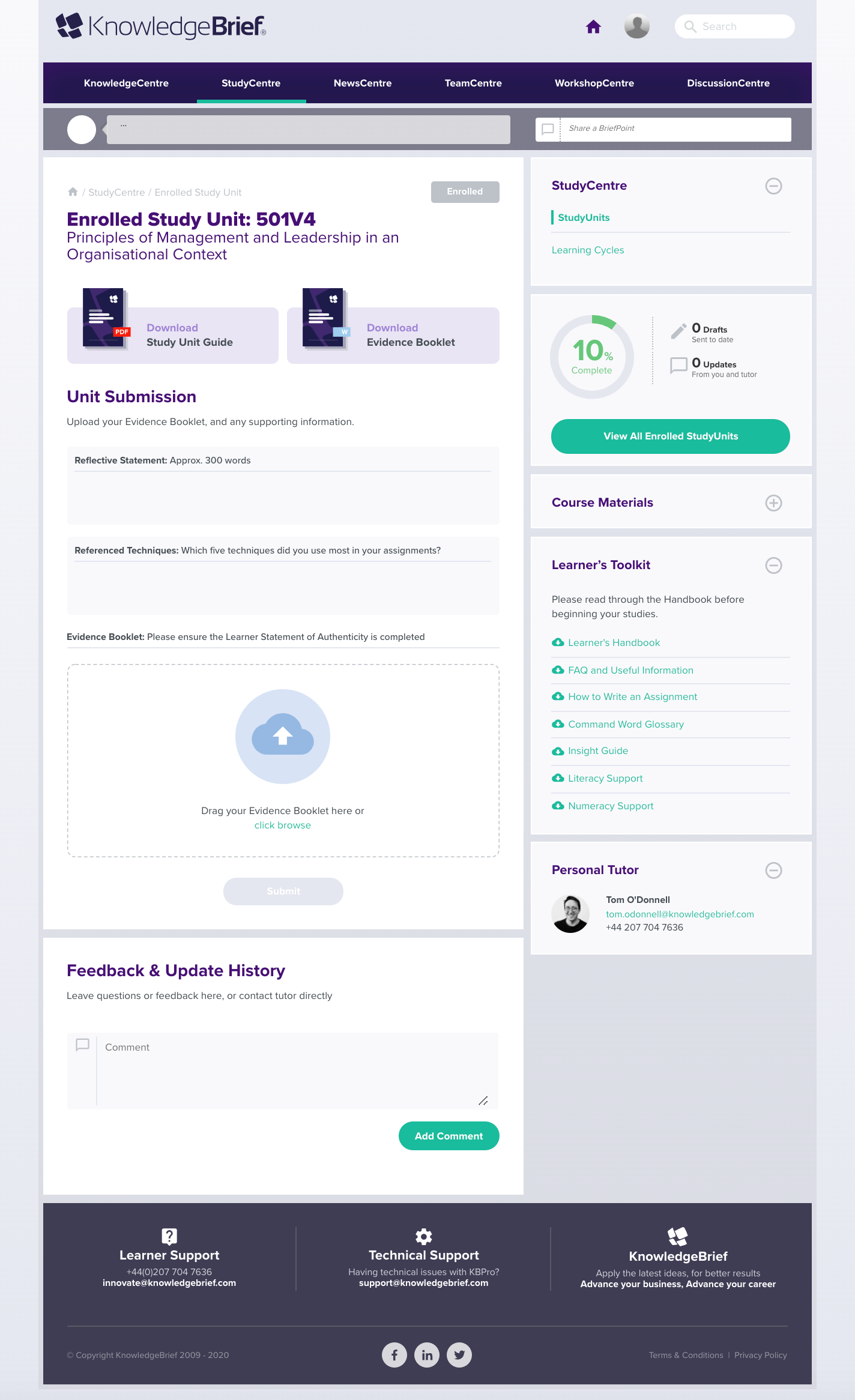 Image 1: Study Unit page — enrolled.
Note that the grey status pill, located at the top of the page, is set as enrolled. Please download the relevant materials to support you in the completion of your study unit. There may also be a helpful video to guide you through this submission where possible.
Learners whose assignment/study unit codes are in thousands, for example 3009 or 5007, will notice that there is now an Evidence Booklet in the top right corner of assignment/study unit page. This Evidence Booklet contains the statement of authenticity. This is the cover sheet that you are used to seeing. This needs to be filled out before your work is sent to CMI for verification. Please download it, fill in the statement of authenticity, and copy and paste your assignment into this document for submissions.
 Image 2: The guides and Evidence Booklet links.
Once you are happy with your draft you can then upload it to the platform. Drag your completed Evidence Booklet into the area below on the study unit page or click browse to upload your draft.
 Image 3: The area to drag your Evidence Booklet into.
Optionally, at this point you can also include your reflective statement and any referenced techniques in this submission.
After that, simply click submit.
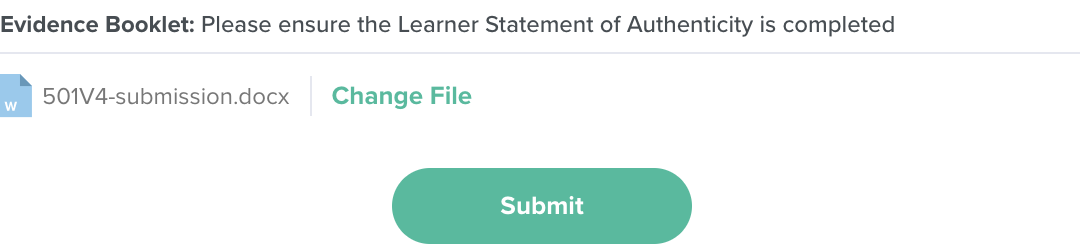 Image 4: Submitting the file.
After submitting your draft, you should get a message confirming your submission has been sent. The status pill should now be blue and read ‘draft’, and your percentage completion should have been increased.
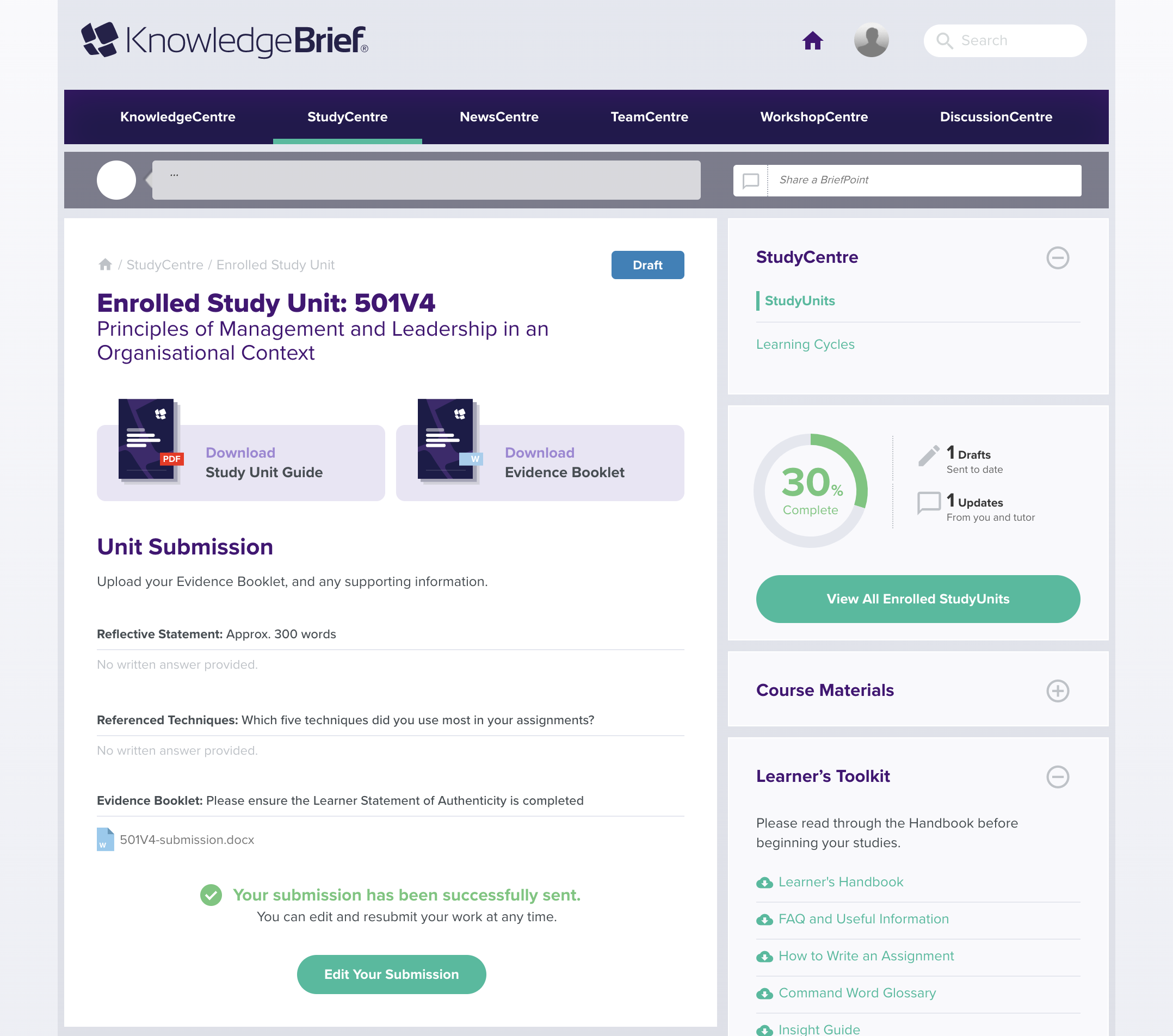 Image 5: Study Unit page — draft submitted.
At this point your PLA will be notified of your submission so that they can begin marking your draft. If you have any questions or doubts at this point, please use the comment box on this page to ask your PLA for any other guidance.
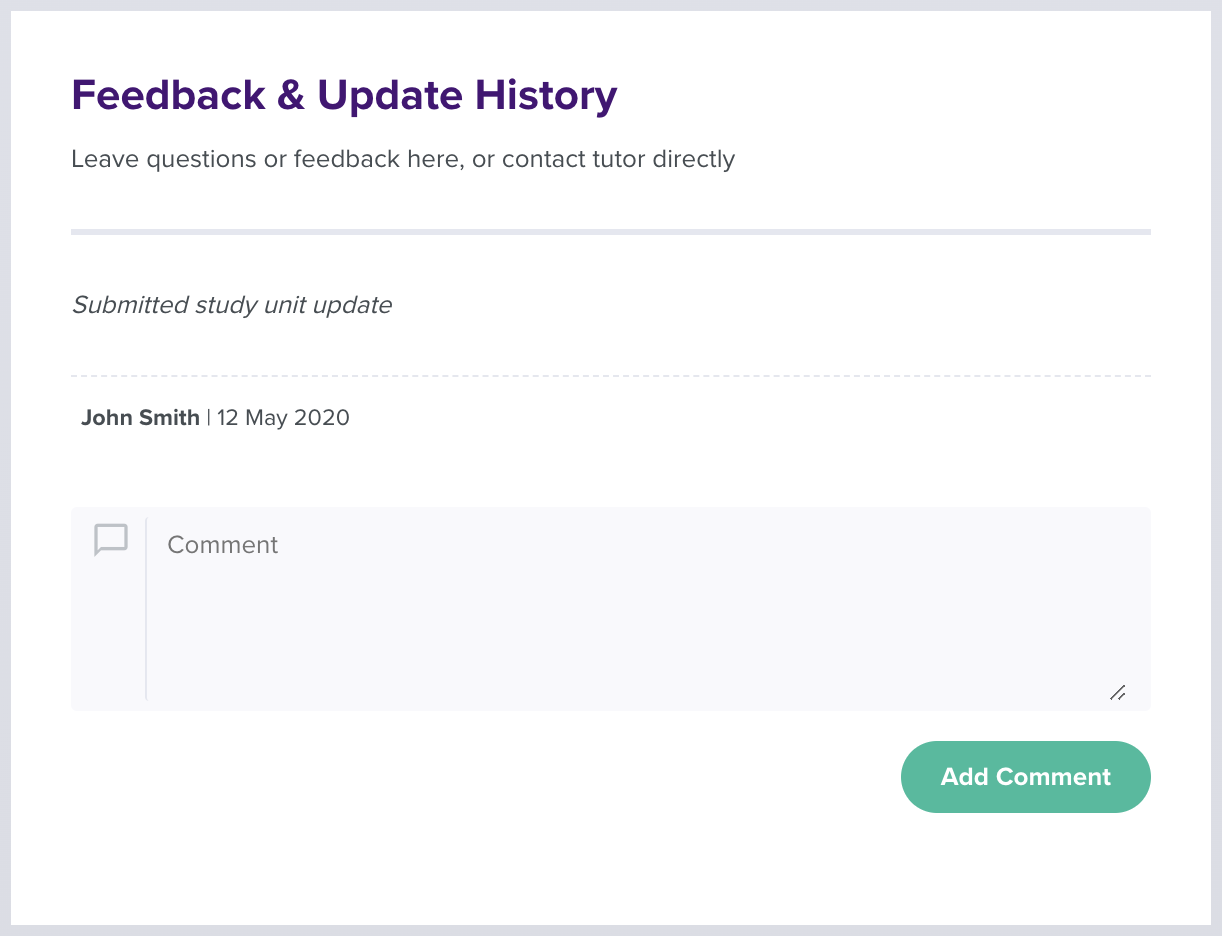 Image 6: Comment section.
You can also edit and resend your submission at this point if you were not happy or had forgotten to add something in the first draft you sent. To do so, click edit your submission, this will allow you to edit your reflective statement and referenced techniques. To upload a new draft file, click change file next to your uploaded document and then upload your document as explained previously.
 Image 7: Changing the file.
Once you are happy with your edits, please click submit. You should get a message notifying you that your submission was successful.
Receiving Feedback from your PLA
Once your submission has been marked by the PLA, they will send feedback to you via a document on the platform. You will get an email notification once this feedback has been added. The email will contain a link to take you to the study unit page on KBPro to view the feedback.
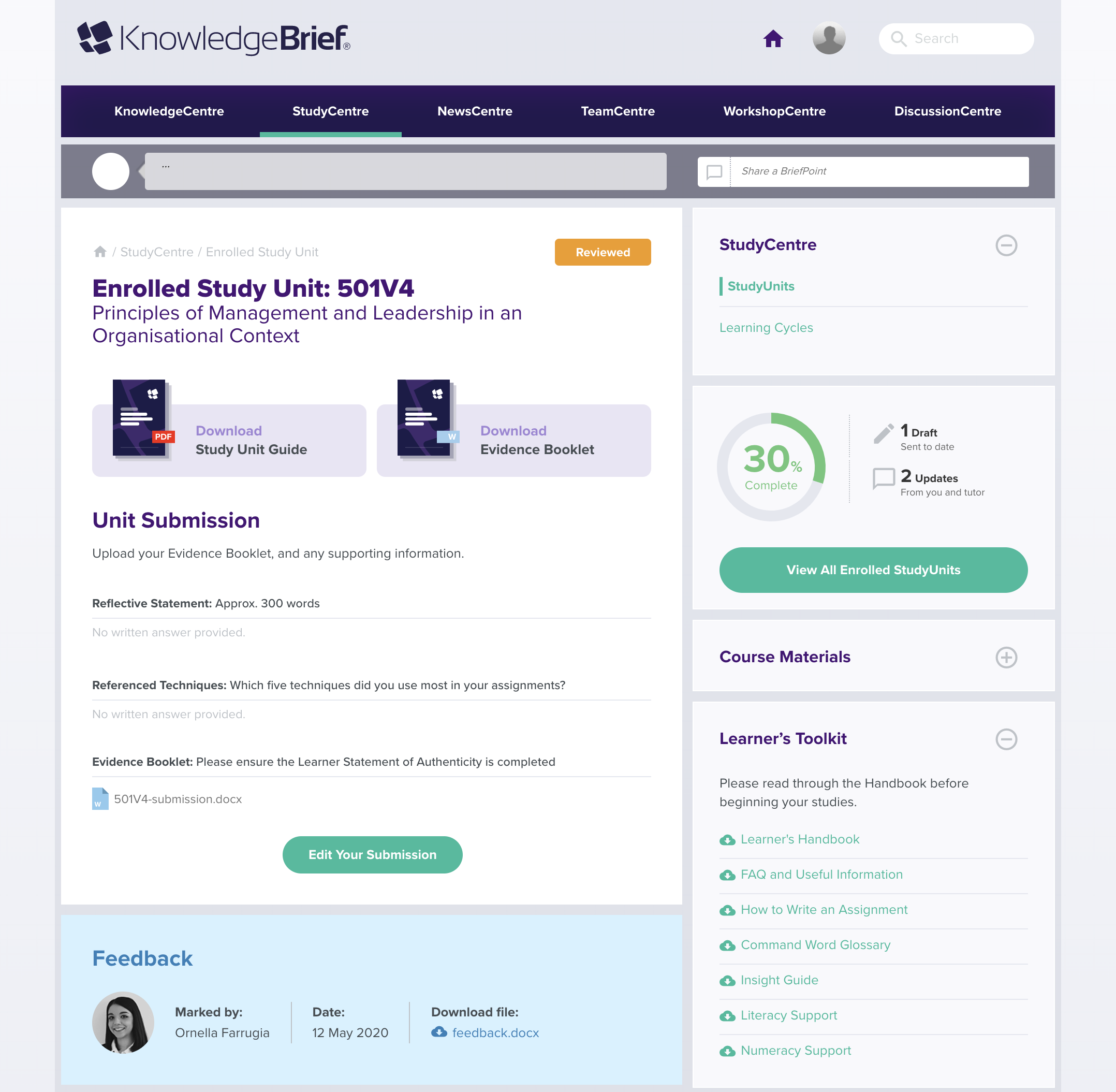 Image 8: Viewing PLA feedback.
Note that the status pill is now orange and reads ‘reviewed’. You should be able to see the blue feedback section on the page where you can download the feedback from your PLA. Once you have made the required changes or would like to resubmit then you can click edit your submission and resubmit your study unit to your PLA as described above.
When your PLA is happy with your submission, they will submit it to the CMI and message you to inform you of this update.
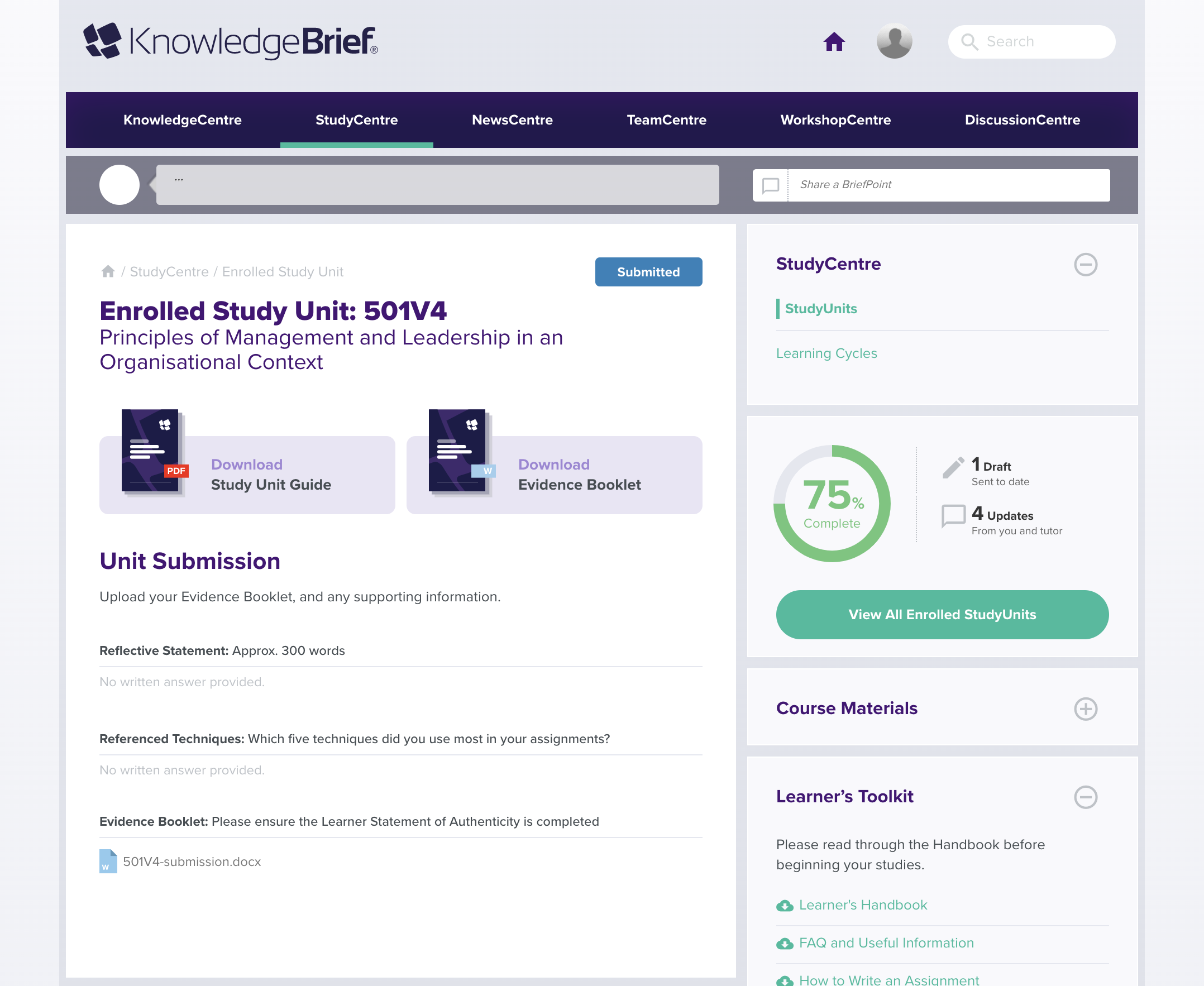 Image 9: Study Unit page — submitted to CMI.
Note that the status pill is now blue and reads ‘submitted’. You will not be able to edit your submission during this state.
If your submission passes CMI moderation, then your submission will be set as passed and marked 100% complete. Your PLA will notify you of this and your study unit will mirror this on the platform.
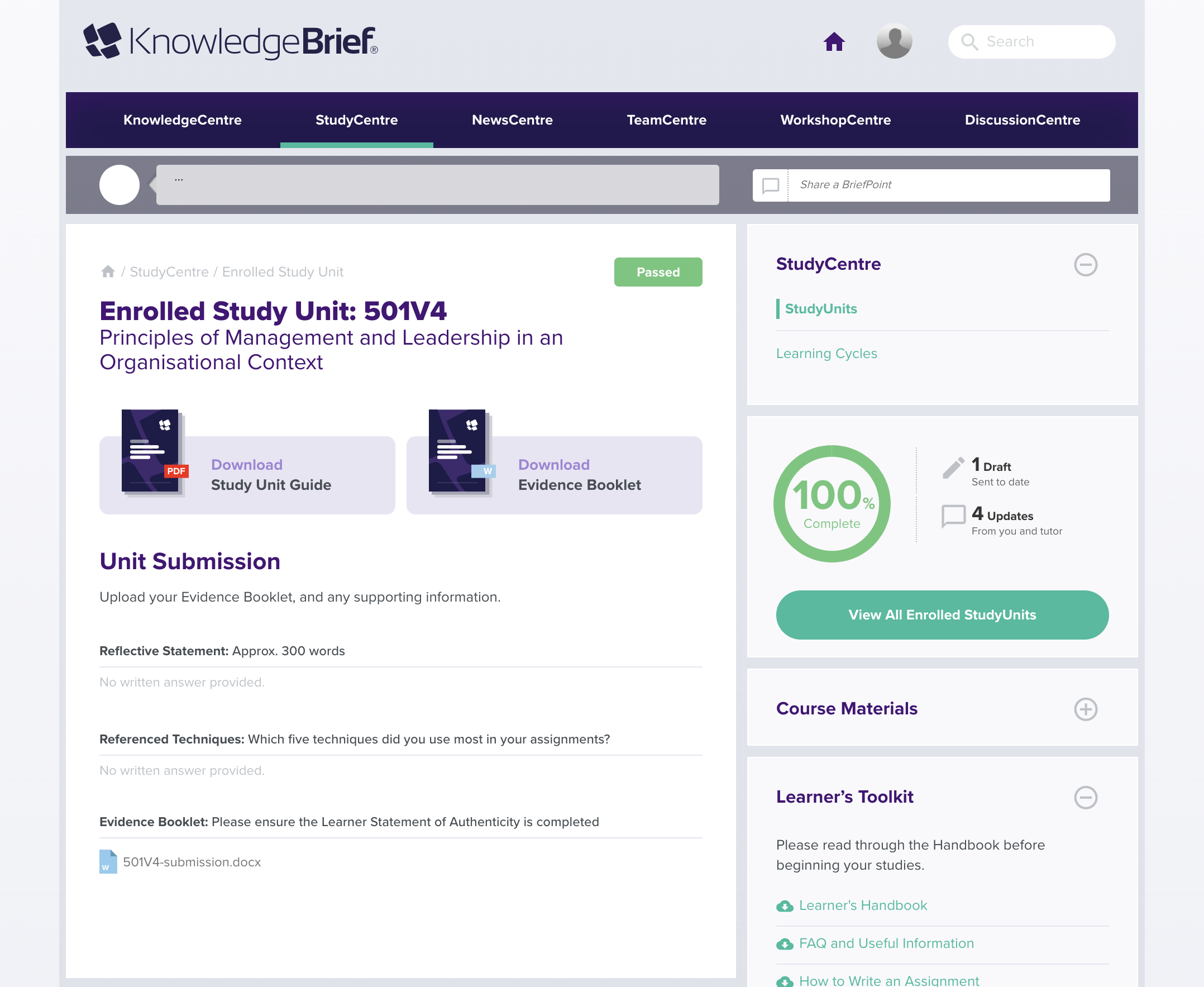 Image 10: Study Unit page — passed.
If your submission was referred by the CMI, the PLA will upload the feedback onto the platform for you to view and edit you study unit appropriately. Upon uploading this feedback you will receive an email containing a link to the study unit page on KBPro where you can download the feedback.
Once your PLA is happy with your submission again, they will repeat the above process of submitting to the CMI until the unit has been passed.
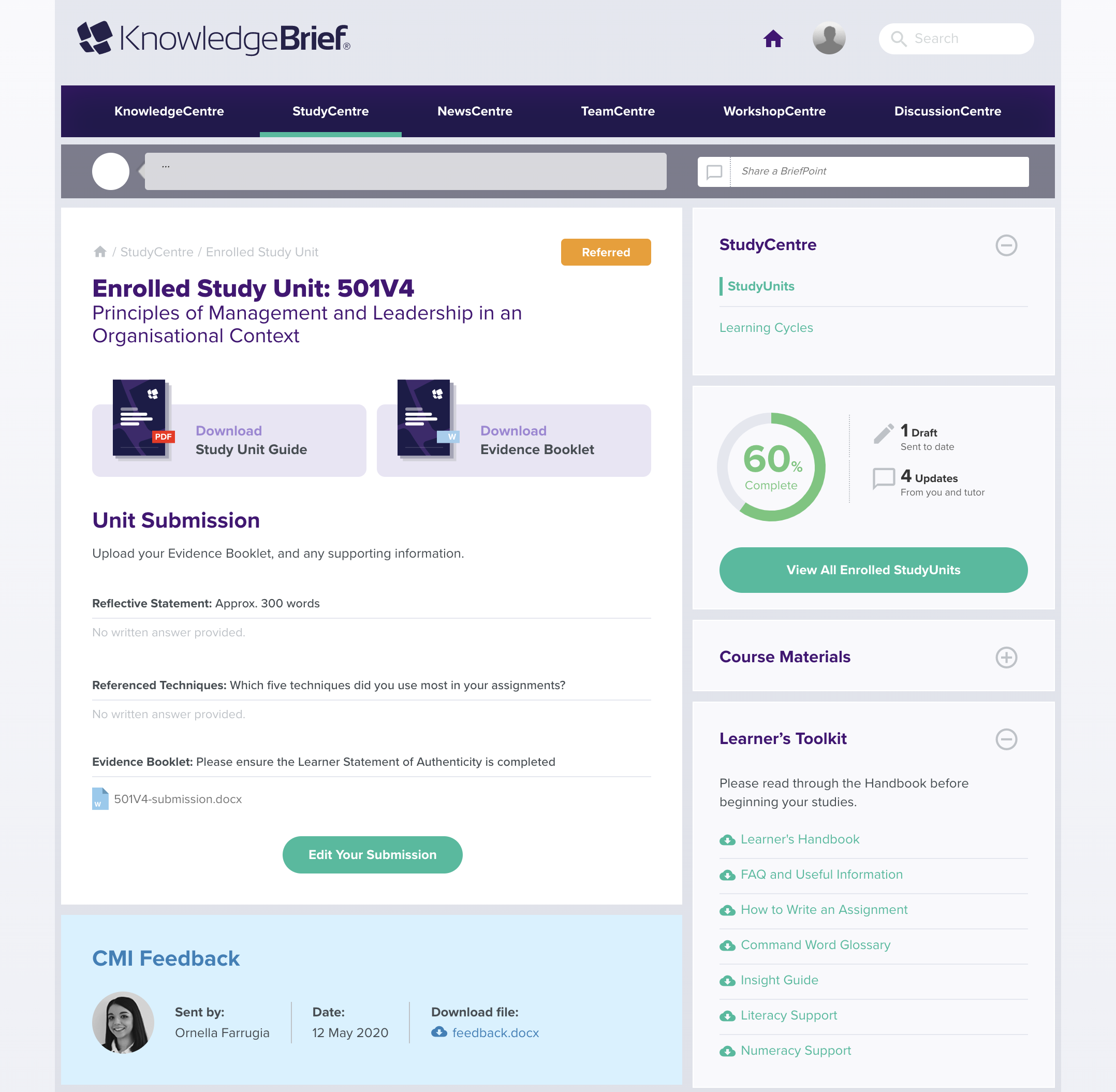 Image 11: Study Unit page — referred by CMI.
Note that the status pill is now orange and reads ‘referred’. You should be able to see the blue feedback section on the page where you can download the feedback from the CMI. Once you have made the required changes or would like to resubmit then you can click edit your submission and resubmit your study unit to your PLA as described above.
Note: The images serve as an example only and interfaces may look slightly different on your company’s bespoke platform.